Getting started with Drivie
Here is how to install and use Drivie, with real screens from the app. The Android app follows very soon.
Install
-
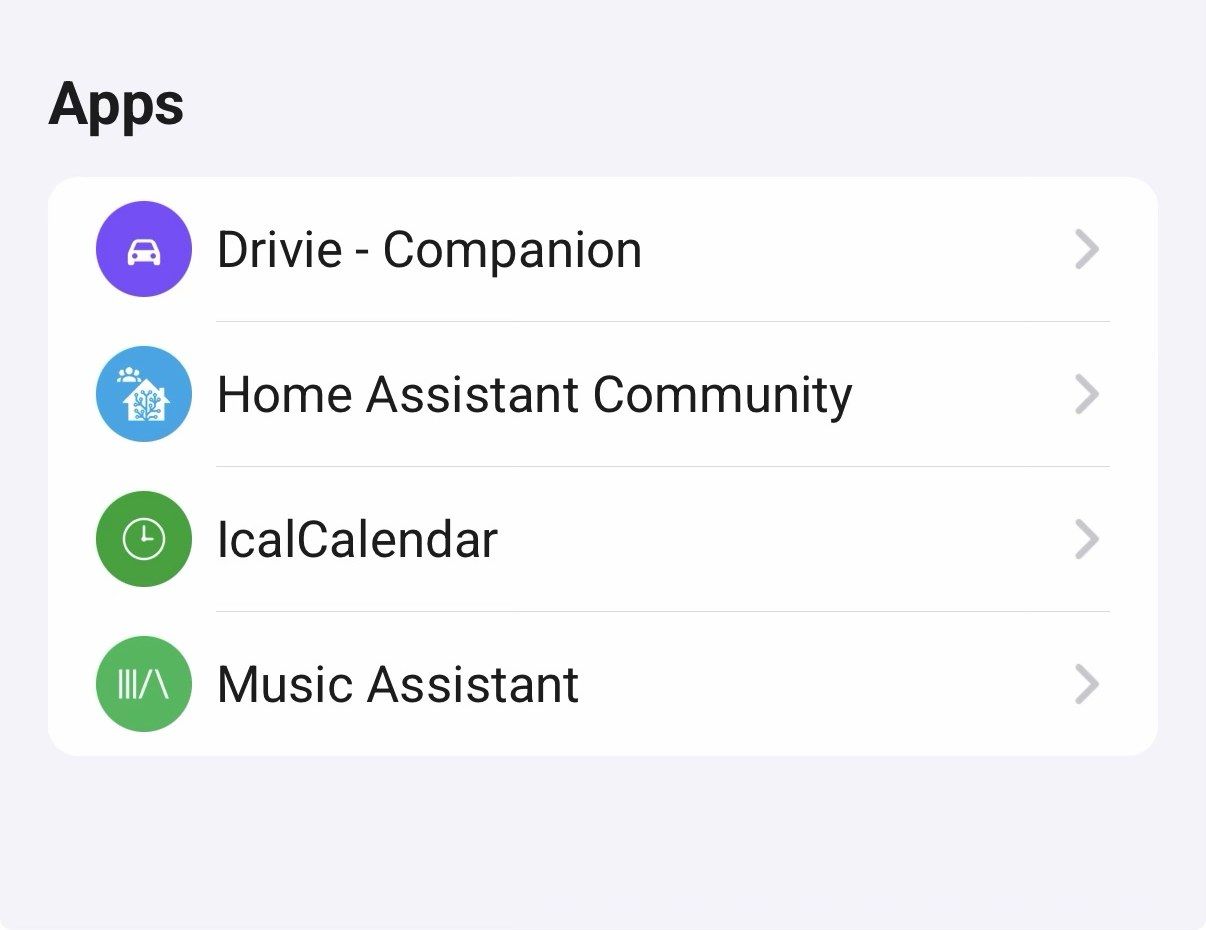
1. Install the companion app on your Homey
Start on your Homey: install Drivie - Companion from the Homey App Store. It's free and only passes your trips and locations on to your flows.
Once installed, you'll find it with your other Homey apps, under Settings → Apps.
-
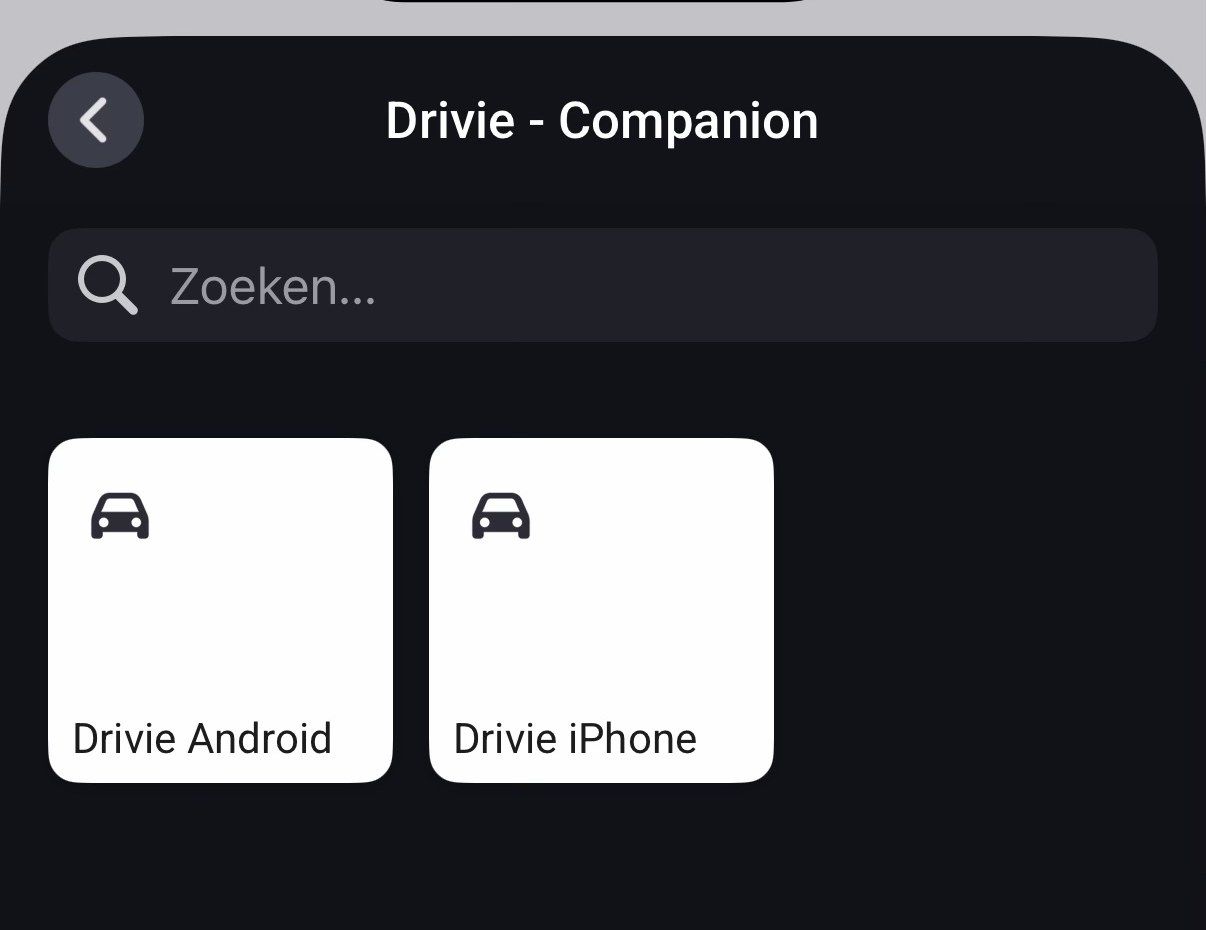
2. Pair your phone
Open the companion settings and pair your iPhone or Android device. Every phone in the house can pair separately. Everyone gets their own trips and locations, off the same Homey.
-
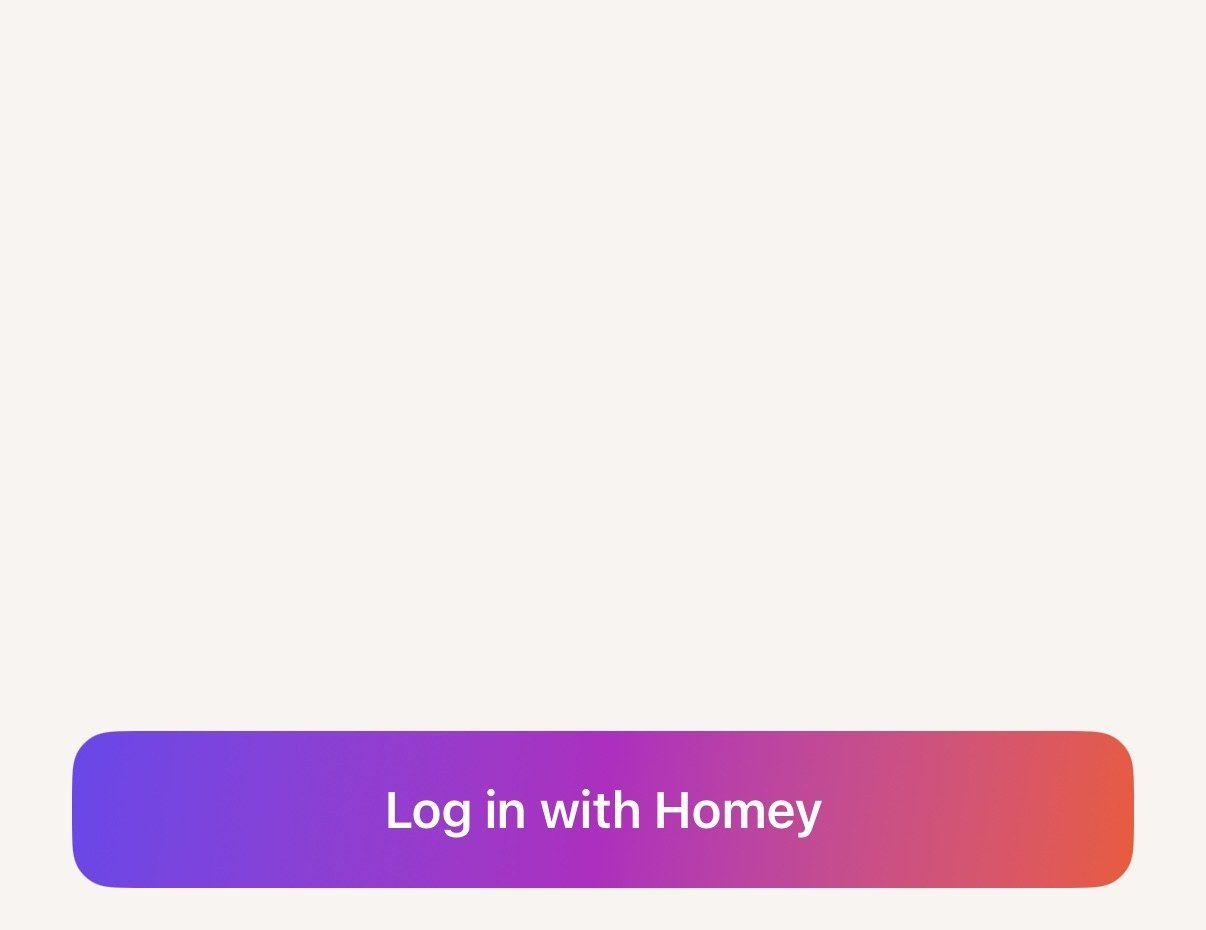
3. Download Drivie and sign in
Install Drivie on your phone and tap Log in with Homey. There's no separate account: Drivie uses the same login your Homey app already knows.

 Google Play — coming soon
Use
-
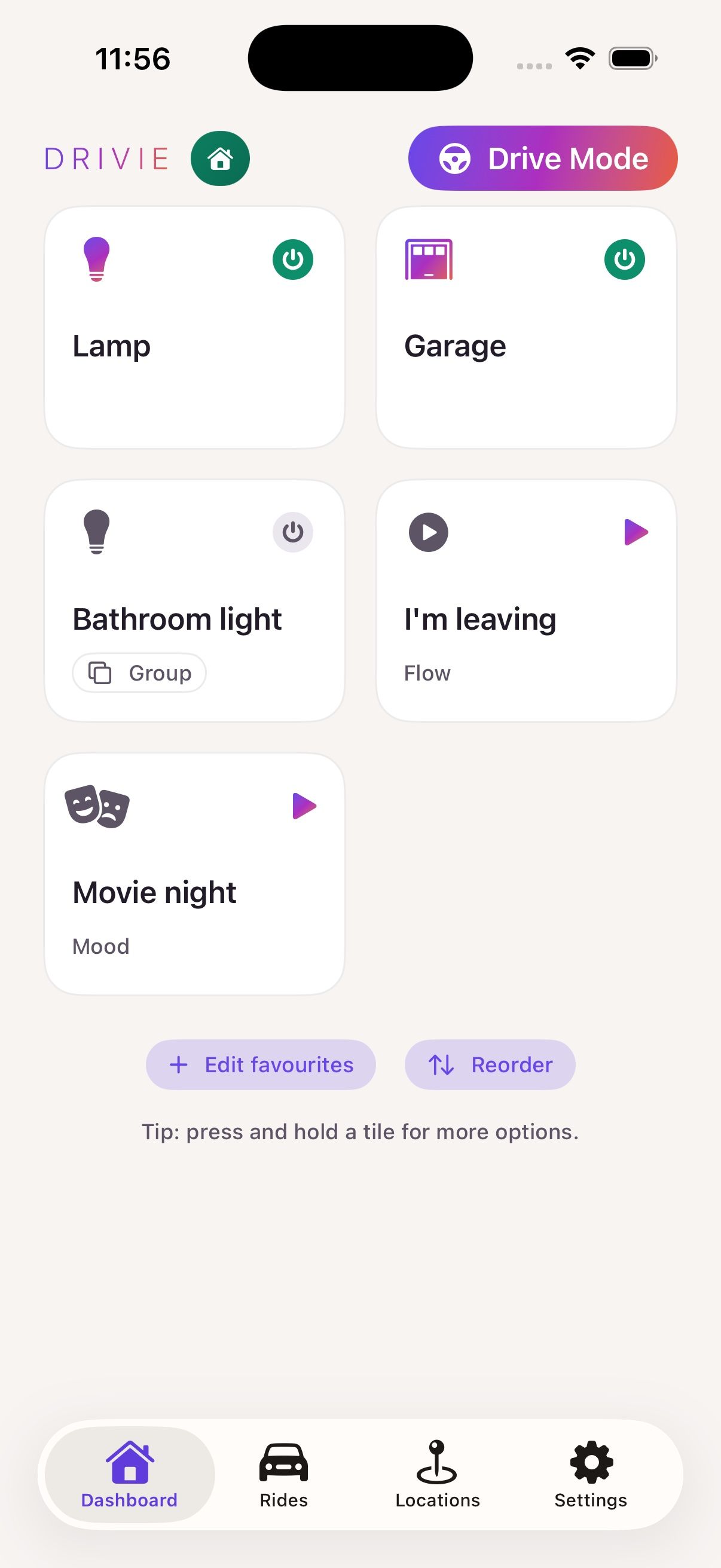
4. Your dashboard, with favourites
Once signed in, you'll see the same favourite devices, flows and moods you already starred in the Homey app. Tap to control, press and hold for more options.
At the top of every screen is Drive Mode, with big buttons and large text for use from behind the wheel.
Drive Mode can also start on its own: in the Shortcuts app, set up an automation that runs "Open Drive Mode" the moment your phone connects to your car's Bluetooth.
- Pro
5. Trips get picked up automatically
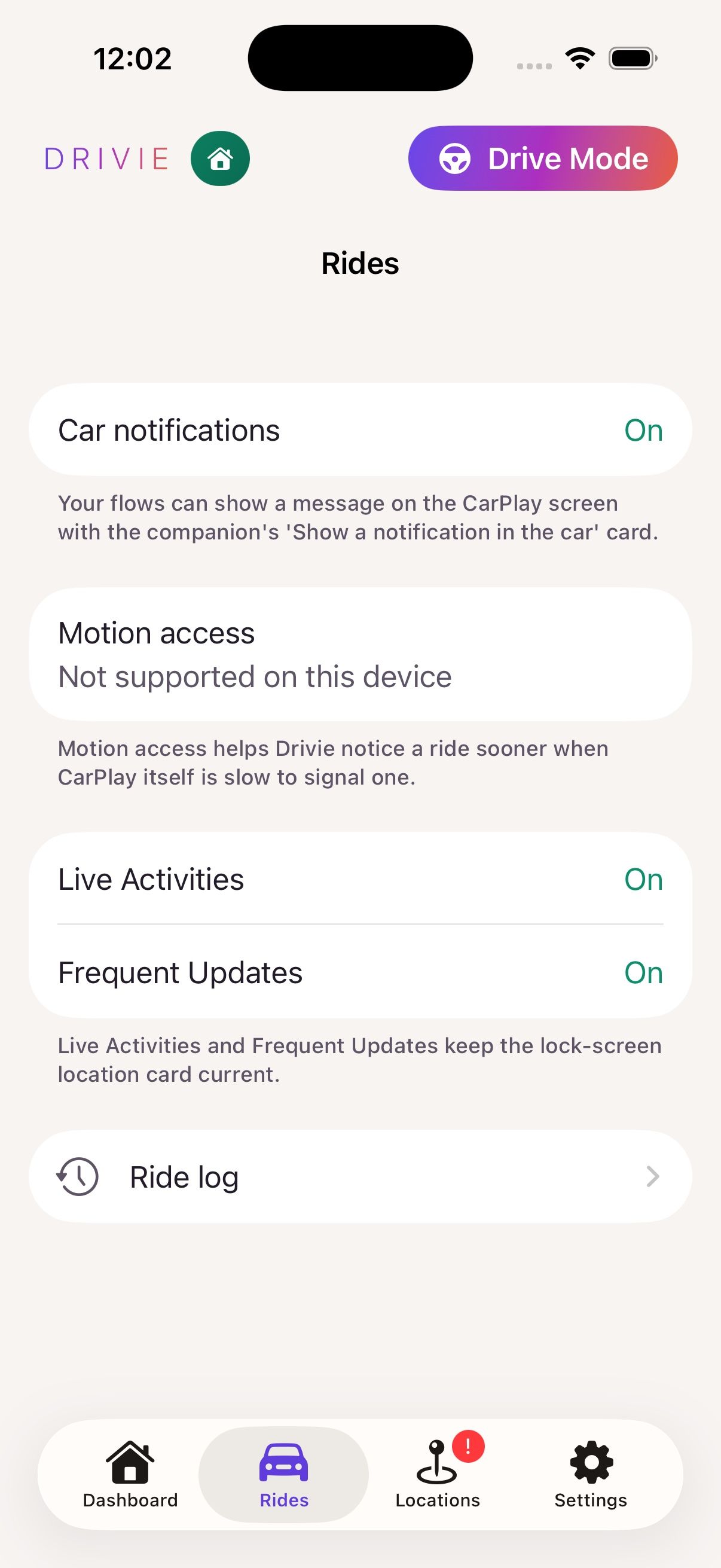
The moment your phone connects to CarPlay or Android Auto, Drivie starts a trip. With Drivie Pro, your phone also recognises a trip without them, from how you move, if you give Drivie access to your motion. It runs in the background, even if you never open the app.
The Rides tab shows how long you were on the road.
- Pro
6. Locations: let your house react to where you are
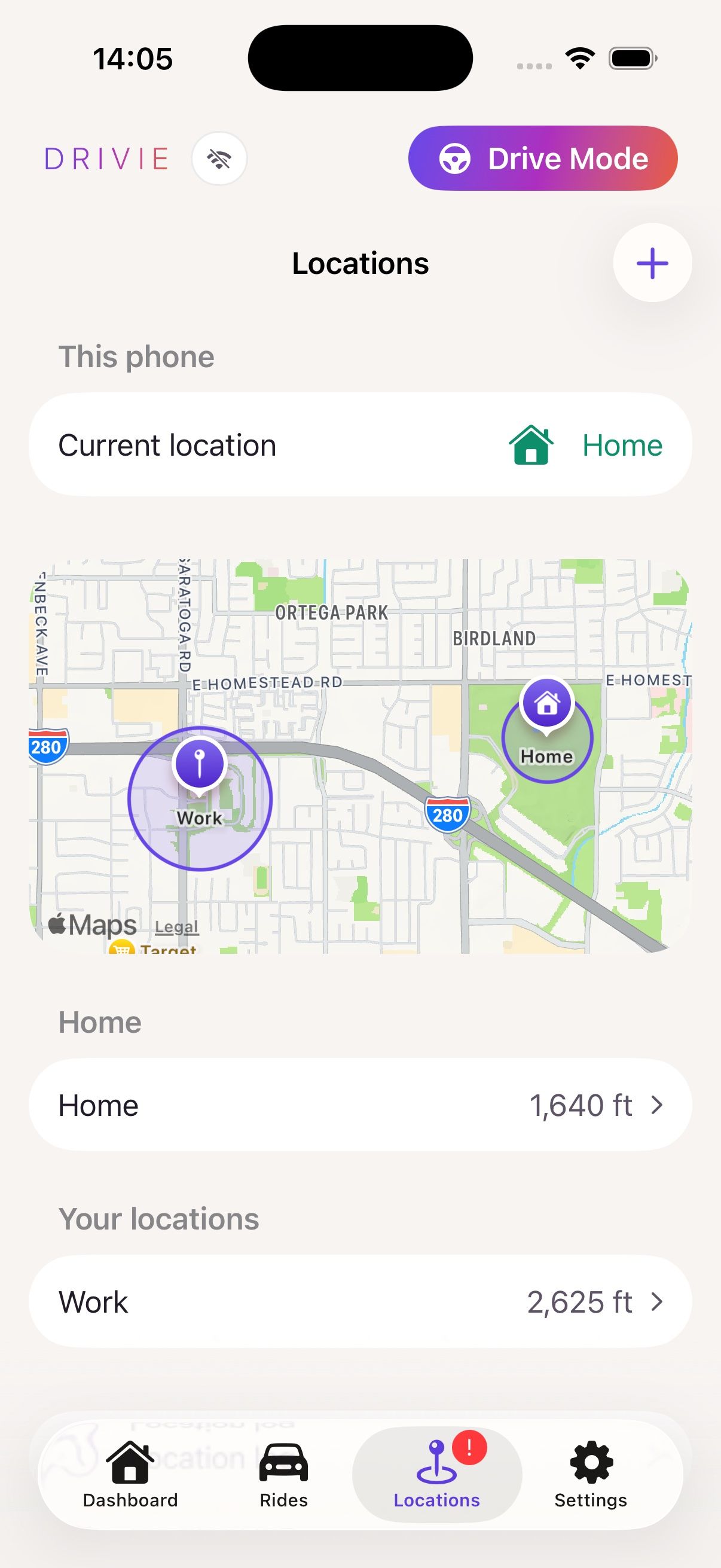
Add a location (home, work, the gym) and choose which buttons show up the moment you arrive there.
At Home, you'll usually pick the devices and flows you use there every day. At your other locations, the useful ones are typically what you'd normally control remotely: unlocking the door for someone waiting outside, or switching on the heating before you get home.
- Pro
7. Lock screen and widget
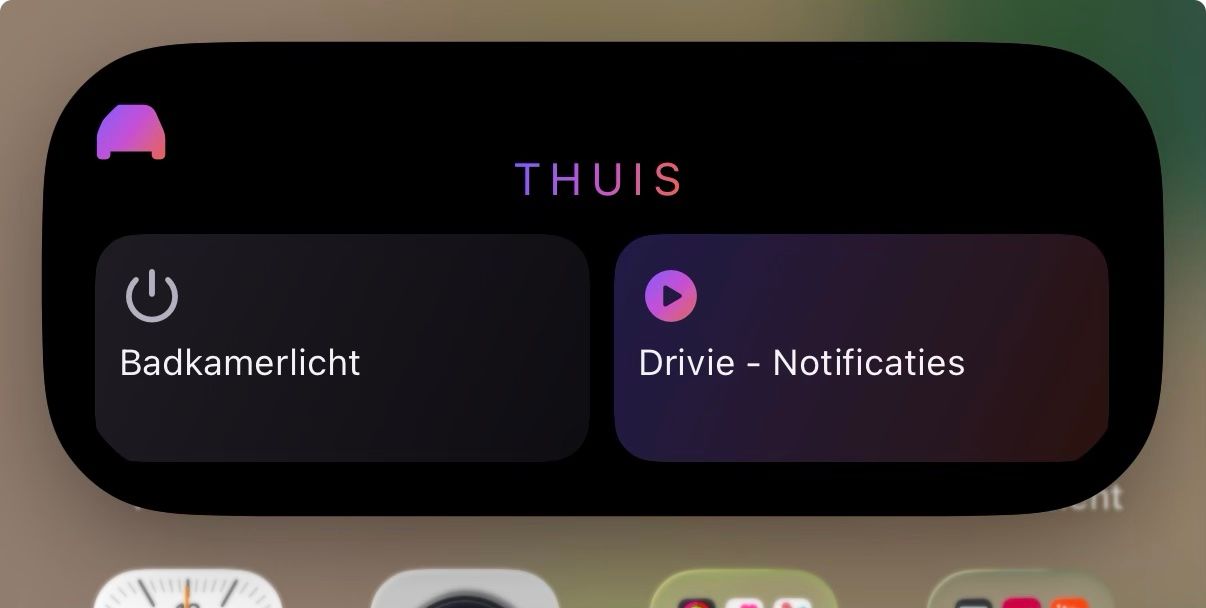
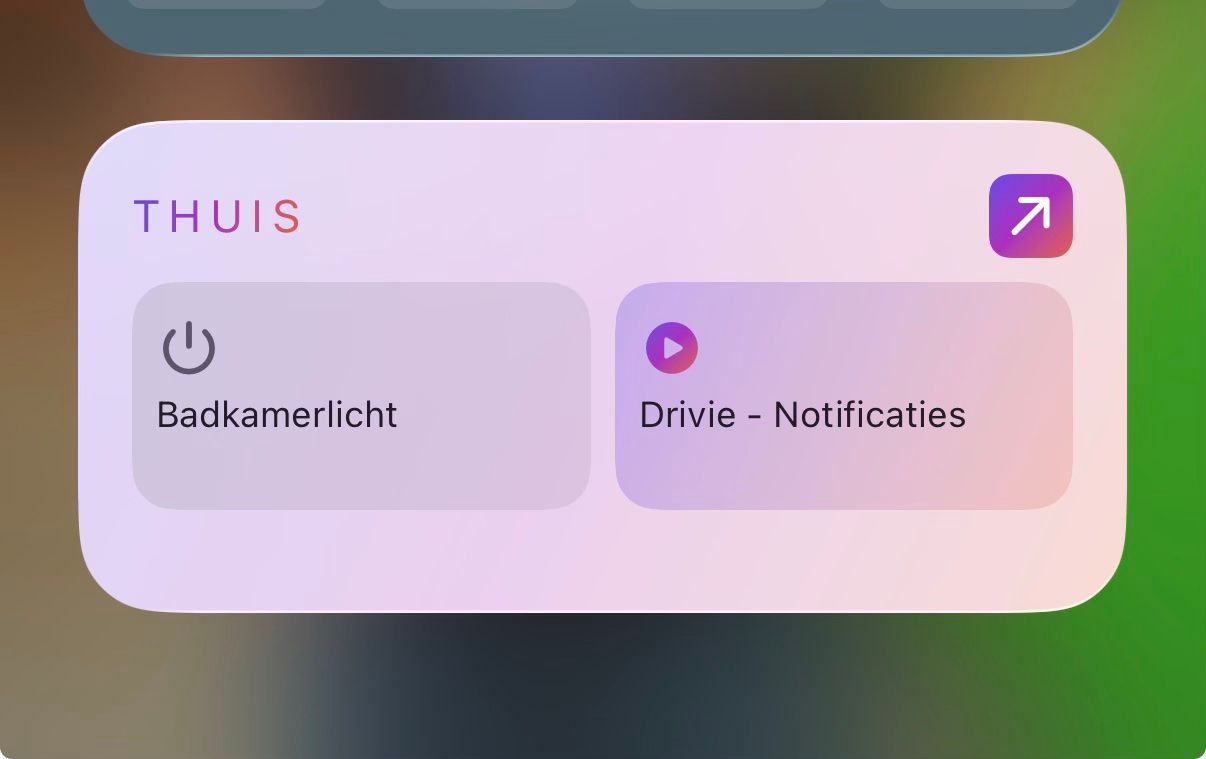
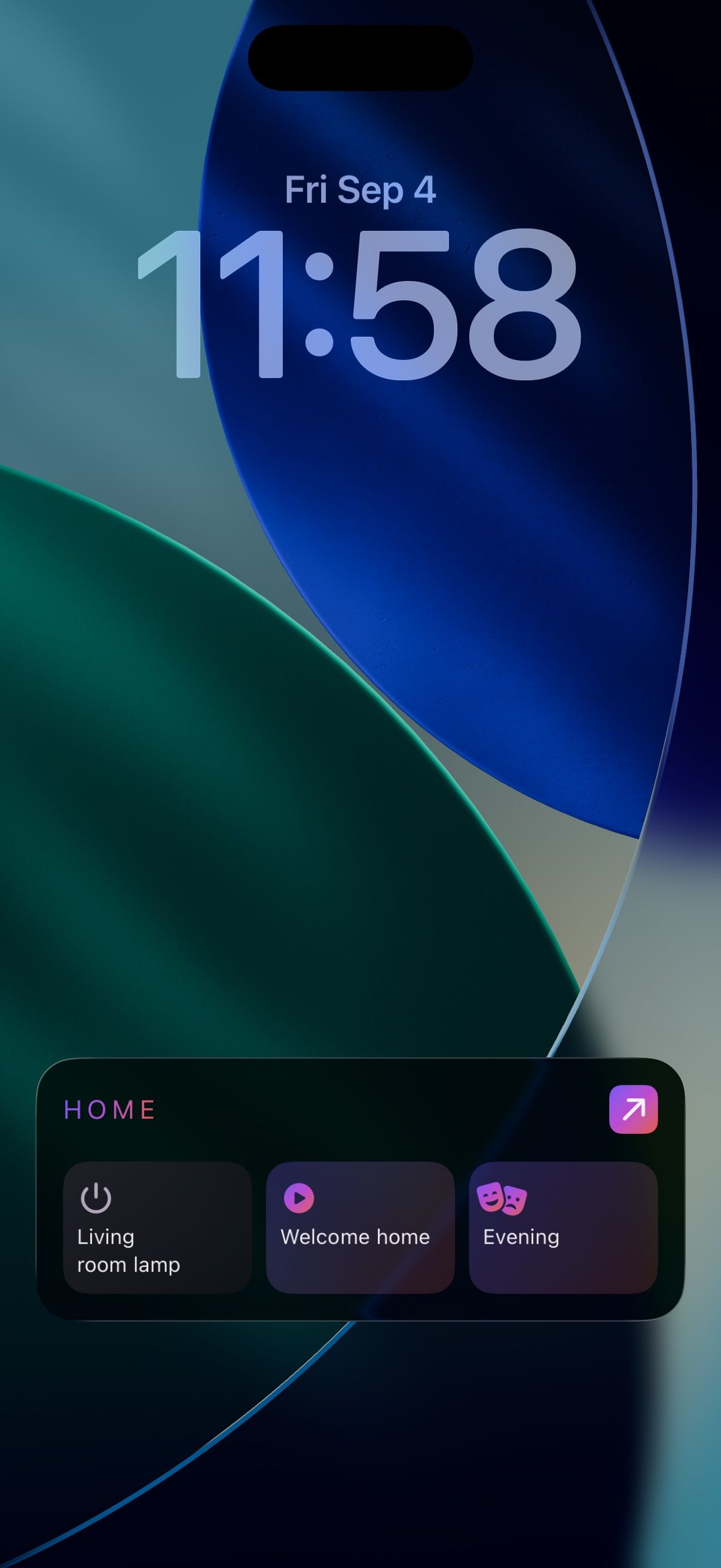
The buttons for whichever location you just arrived at show up on your lock screen and as a widget on your home screen, so you don't need to open Drivie at all.
Have an Apple Watch or a Wear OS watch? Then the same buttons show up on your wrist too.
Settings
-
8. Checking permissions
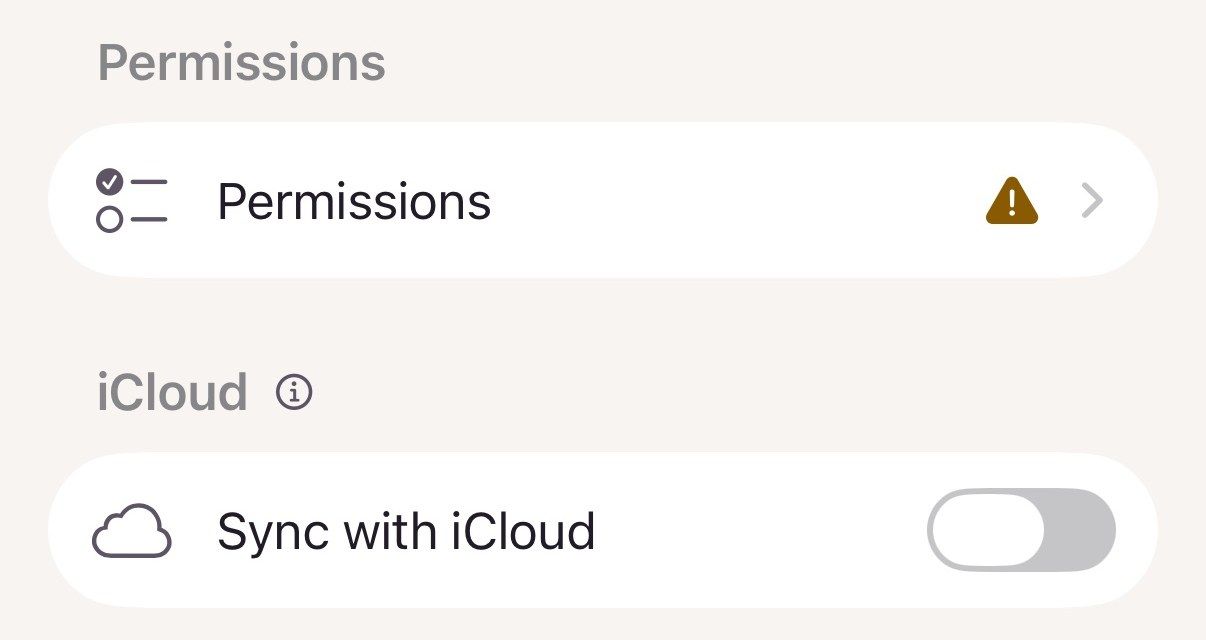
Under Settings → Permissions you can see at a glance whether everything is in order: location, notifications and motion, with a direct link to whatever needs attention. Questions? The FAQ and the contact button live right next to it.
-
9. Pro belongs to your Homey
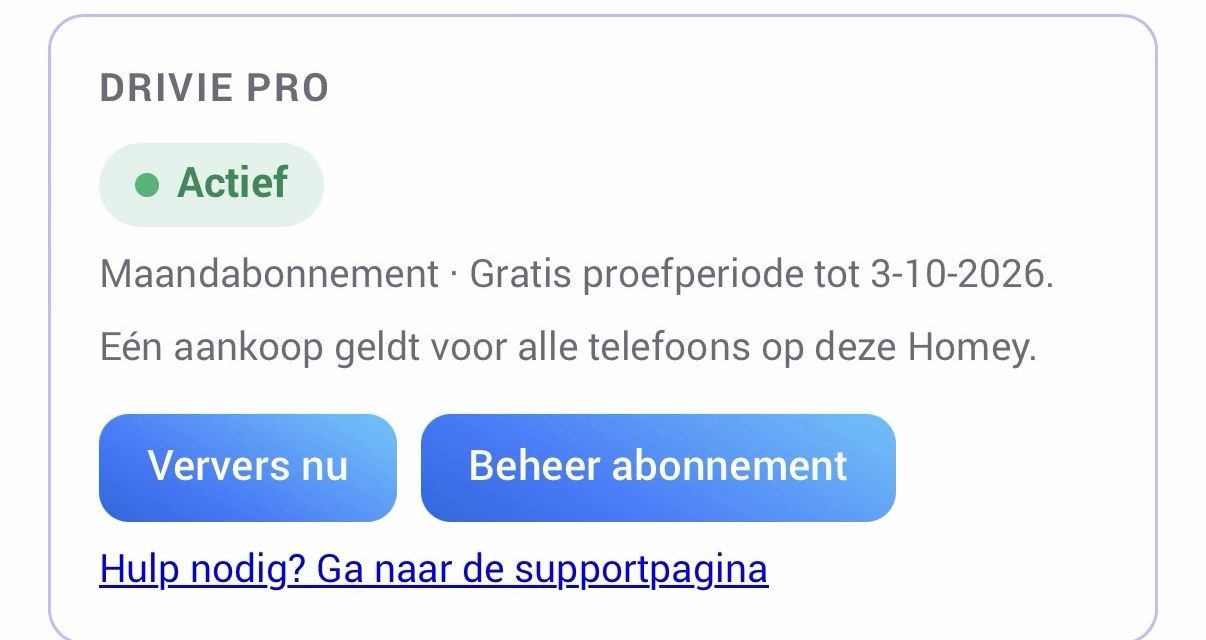
Drivie Pro belongs to your Homey, not to a single phone. Once you buy it, every phone that is signed in to Drivie and added as a device on your Homey has Pro automatically.
Each phone's settings show which plan is active, and until when.
Still have questions?
The FAQ covers most problems, from slow updates to a trip that ends late. If you can't find your answer there, send me a message.